If you recently damaged or even destroyed your cellphone, you might be thinking of replacing it with a brand new model. The problem with this is that cellphones are simply not cheap and they can cost a lot of money when you buy them completely brand new. This is a problem for people who happen to be on a budget but still need to have a cellphone on them at all times for emergencies or work. The best way to get these issues fixed is by contacting the company for further assistance and having them repair your cellphone for you.
You will need to bring in your phone for them to repair and they will normally be able to have the job done within a matter of about a day or so. You will also be able to find out how much the job is going to cost you depending on what type of damage has been done to the phone. Be sure to ask these types of questions before you actually contact the company to bring your phone in. This is a much better way to repair a phone than if you were to simply buy a brand new model.
Showing posts with label Samsung. Show all posts
Sunday, June 23, 2013
How to hide e-mail and facebook contacts from a Samsung Galaxy S2
I'm sure that everyone who has a new Samsung Galaxy S2 how synched the phone with their gmail account and most will have done the same for their facebook account and then noticed that their contacts list was full of people from those sites. Although it's a nice feature for some people many people seem to wish they could just see the list of contacts with phone numbers, this guide will show you how to hide those other contacts from various contact lists.
Firstly you need to open the contacts list and then press the phones menu button. This should result in a screen similar to the one on the right hand side with 6 options. The option you need to select is "More" and is in the bottom right hand corner by default. Pressing "More" should open a menu like the one on the left hand side. On this screen you need to select "Display options" (which is just above "Settings").

When you open the "Display options" you will notice a tick box near the top beside the option of "Only contacts with phone", you need to click this option and then you'll have hidden all those pesky E-mail and facebook contacts from your contacts list.Of course if you want to re-add those contacts back to your contacts list you can fee free to go back and untick the box and they will reappear.
How to make Skype video calls with the Samsung Galaxy S2
One of the few complaints with the Samsung Galaxy S2 smartphone on release date was that the Skype app didn't allow video calls, this has however been sorted out thanks to to a new update for the app. Before you attempt to make a free video call through Skype with the phone make sure to update the application to the newest version (at the time of writing it is version 2.1.0.46.)First you need to login into the app, you may need to create a Skype account if you've not already got one this is easily done via a computer (though I'm not sure on setting one up via the phone it's self).
After logging into Skype you will see the menu screen that the app uses. You can select "Contacts", "Recent", "Call phones" and "Profile" as well as a search function (top right) and a text entry part to enter your status. If you wish to play about then fantastic! Though the option you need to select to make videocalls is the "Contacts" option which will open your contact list.
Sadly as you can see in the screenshot to the left I've not got many contacts on my Skype account (having only created it for the purposes of this guide) though you need to select the contact that you are wishing to call.
Whilst in the contact screen (see right) you will notice 3 optionsyou can make a "Skype call" a "Skype video call" or "Send IM" (a plain text type message such as you would use on MSN or Facebook chat). The option you need to select here is the "Skype video call" option (rather predictably) and, as long as the other contact accepts the call you'll manage to make the call.
Remember however that the other contact will need to be logged into an account and on a device capable of receiving and sending video calls (A PC or a phone with similar capabilities). When using a Samsung Galaxy S2 you'll be using the phones front facing 2MP camera and also able to see your contact on the screen.
Remember when using this that you will need an internet connection, preferably a high speed 3G (or even 4G) connection or a good and stable Wi-Fi connection. If you are using a mobile internet connection make sure you keep an eye on your usage as you may end up incurring a data charge, however the function of making video calls through Skype it's self is free. You will usually notice that using Wi-Fi will allow a smoother call than using mobile internet though even using 3G should allow a smooth and solid call.
Are the facts behind "Mobile Internet Caps" a false economy?
I've recently finished one of my contracts with Vodafone. Over the past 3 years I've had 3 concurrent contracts with them for various reasons with my first Vodafone contract dating back over 4 years. I'll be honest I've received fantastic service from them since I started but in the weeks coming up to a renewal I was rather disheartened by the way they were starting to treat me.
As I spoke to various shops selling phones I started to realise that Vodafone were misleading me on several key issues and were also pedalling rather misleading facts that didn't represent a full picture of what was going on. In fact looking back over things I've got to admit I'm actually disgusted at the way they treat me as a customer.
In this past this website hasn't been about ranting and raving but about giving you, our loyal readers, a chance to get the most from your handset. This time however I'd like to make you aware of some of the issues I feel belie a rather dishonest sales technique used by Vodafone (and likely several other companies).
About 3 months ago I did renew one of my contracts, taking out a 24 month contract on a Samsung Galaxy S3. Whilst speaking to Vodafone in store they told me that they were the only way I could get a 24 month warranty on a handset with their network. This wasn't a major selling point to me but something I was curious about so when looking for another renewal I did ask in Phones4U if they offered the same 2 year warranty and to my surprise, they did.
Yes Vodafone had lied to me. I know it was a small detail but it was still a lie.
I was hoping to upgrade to a Samsung Galaxy S4, arguably the best handset on the market. I had called the retentions and cancellations department of Vodafone on 4 separate occasions and spoken to a member of their web team.
On my first 3 calls to the retentions and cancellations team I was told their system was down (this was over the space of 2 days). I was trying to inform them that I had seen a deal with “3” that I liked and one of the team informed me that “3's service were regularly down”, I don't think he saw the irony. I spoke to another operator and the best they could offer me was 1GB data for £37, despite the fact the company had text me on the number I had previously upgraded and offered me a 2GB data deal for £38.
When I was in Phones4U I asked what was the best they could do on Vodafone was and their deals were all £5 a month less than what Vodafone had offered directly. I knew that Phones4U and Carphone Warehouse (amongst other 3rd party retailers) were cheaper than Vodafone directly. I was under the belief (and still am) that this because they are considered an affiliate and as a result have some leeway in negotiating with customers. In fact a company can claim up to £45 per phone on commission from Vodafone as an affiliate (this is publicly advertised on Vodafones own website).
When I spoke to a cancellations agent about the price differential I got told that the reason Phones4U could undercut them was due to “selling my details”. Whether they sell my details or not, I have a strong feeling that the reason they can under-cut Vodafone is at least partly due to being an affiliate.
Now whilst that may be wrong it is my strong understanding that they are on commission and can undercut as a result.
Whilst the “mis-selling” is perhaps a wrong term I do strongly feel that I've been lied to be the company in what they've said, though I can't also claim that. In fact sometimes Vodafone do stick to well understood facts.
In the UK the average mobile phone user used 440MB of data a month in 2012 (according to one of the Vodafone cancellations team). Interestingly this fact is being pushed out a reason not to use “unlimited” or “All You Can Eat” data packages (offered by “3”, “T-Mobile” and “Giffgaff”) though it doesn't actually look at trends (including a big growth last year in the data used by an average customer) or even the reasons behind the figure. (Note "3" have said their average customers usage between 2011 and 2012 moved from 450MG to 1.1GB)
As I spoke to various shops selling phones I started to realise that Vodafone were misleading me on several key issues and were also pedalling rather misleading facts that didn't represent a full picture of what was going on. In fact looking back over things I've got to admit I'm actually disgusted at the way they treat me as a customer.
In this past this website hasn't been about ranting and raving but about giving you, our loyal readers, a chance to get the most from your handset. This time however I'd like to make you aware of some of the issues I feel belie a rather dishonest sales technique used by Vodafone (and likely several other companies).
About 3 months ago I did renew one of my contracts, taking out a 24 month contract on a Samsung Galaxy S3. Whilst speaking to Vodafone in store they told me that they were the only way I could get a 24 month warranty on a handset with their network. This wasn't a major selling point to me but something I was curious about so when looking for another renewal I did ask in Phones4U if they offered the same 2 year warranty and to my surprise, they did.
Yes Vodafone had lied to me. I know it was a small detail but it was still a lie.
I was hoping to upgrade to a Samsung Galaxy S4, arguably the best handset on the market. I had called the retentions and cancellations department of Vodafone on 4 separate occasions and spoken to a member of their web team.
On my first 3 calls to the retentions and cancellations team I was told their system was down (this was over the space of 2 days). I was trying to inform them that I had seen a deal with “3” that I liked and one of the team informed me that “3's service were regularly down”, I don't think he saw the irony. I spoke to another operator and the best they could offer me was 1GB data for £37, despite the fact the company had text me on the number I had previously upgraded and offered me a 2GB data deal for £38.
When I was in Phones4U I asked what was the best they could do on Vodafone was and their deals were all £5 a month less than what Vodafone had offered directly. I knew that Phones4U and Carphone Warehouse (amongst other 3rd party retailers) were cheaper than Vodafone directly. I was under the belief (and still am) that this because they are considered an affiliate and as a result have some leeway in negotiating with customers. In fact a company can claim up to £45 per phone on commission from Vodafone as an affiliate (this is publicly advertised on Vodafones own website).
When I spoke to a cancellations agent about the price differential I got told that the reason Phones4U could undercut them was due to “selling my details”. Whether they sell my details or not, I have a strong feeling that the reason they can under-cut Vodafone is at least partly due to being an affiliate.
Now whilst that may be wrong it is my strong understanding that they are on commission and can undercut as a result.
Whilst the “mis-selling” is perhaps a wrong term I do strongly feel that I've been lied to be the company in what they've said, though I can't also claim that. In fact sometimes Vodafone do stick to well understood facts.
In the UK the average mobile phone user used 440MB of data a month in 2012 (according to one of the Vodafone cancellations team). Interestingly this fact is being pushed out a reason not to use “unlimited” or “All You Can Eat” data packages (offered by “3”, “T-Mobile” and “Giffgaff”) though it doesn't actually look at trends (including a big growth last year in the data used by an average customer) or even the reasons behind the figure. (Note "3" have said their average customers usage between 2011 and 2012 moved from 450MG to 1.1GB)
Saturday, June 22, 2013
How to change the font size in the Gmail app on Android phones

Although we've shown you how to change the size of the font on the normal screens of the Samsung Galaxy S2 there is a very well hidden secret on changing the size of the font in the Gmail app. Firstly you need to open the Gmail app which should look something like the screen like the screenshot to the right hand side with all your e-mails in it.
Whilst in your your Gmail screen press the phones menu button and then click on the contextual option that says "More". After doing this you will notice 3 options at the bottom of the screen: "Settings", "Help" and "About", from here you need to select "Settings".
In the settings screen you will see something like this screen to the right. The selection you need is that of your e-mail address, so in this example I need to select "s.
". Of course if you have a number of Gmail accounts synced to your phone you will need to select the specific one that you want to change the font size on.
After clicking on the account name (your Gmail address) you will see the option screen that is shown on the left with a number of options. Near the bottom of the screenshot you can see "Message text size" with an arrow next to it, select this one to open up a list of sizes.
The sizes on offer are "Tiny", "Small", "Normal", "Large" and "Huge" (as you can see in the list to the right hand side)
feel free to select whichever of these you wish to use. If you use a number of different Gmail accounts you may wish to change the size of them all, though you will need to do them individually.
iPhone Secrets Tips & Tricks – A Guide To iPhone Shortcuts
iPhone Secrets Tips & Tricks by Intelligenti is an incredible application guide for iPhone secrets, tips, tricks and shortcuts. Below you will find this iPhone guide including shortcuts, organizational tips, battery life savers, typing tricks, music tricks, camera tricks, photo tricks, Safari tips, security tips, Find My iPhone guide, iCloud guide, Siri guide, microphone tips, travel tips, advanced tricks and troubleshooting tips. Read the iPhone Secrets guide below and become an iPhone guru!iPhone Secrets Tips & Tricks
iPhone Shortcuts
Shortcut to top of iPhone screen
Tap on the status bar at the top of iPhone screen to quickly scroll to top of page in web browser, email, or SMS message.
Quickly change apps with the multitasking bar
Double press the home button to bring up the multitasking bar. All your open apps will appeal so you can swap between two recently opened apps without having to close the one you are using.
Control music while surfing the web or using other apps
Double press the home button to bring up the multitasking bar. Slide finger to the right across the bar and hidden music controls will appear. Now you can quickly skip a song or pause without exiting the app.
View all your notifications
Slide your finger down from the status bar to access the notification center. If no status bar is showing, slide your finger down from the top of the screen. You can clear notifications by tapping the x and then clear to keep only the most important app updates in notification center.
Instantly Silence your iPhone
Tap one of the volume buttons on the side of your phone to immediately silence your phone if it is ringing or vibrating.
Send to Voicemail
Press the on/off button on the top of your iPhone twice. If you’re using the headset you can tap the microphone twice to send the caller directly to voicemail.
Redail on iPhone
Open phone and tap on keypad. Tap call twice and it will retail the last dialed number.
Lock iPhone Screen in Portrait
Lock your screen so it doesn’t rotate when placed on a table or when you’re lying down by double tapping the home button to open the multitasking bar. Slide your finger to the right and find the rotation lock icon on the far left. Tap on the rotation lock icon to lock your screen, and then tap it again to unlock your screen.
Go Back to First Screen on iPhone
Press the home button to quickly go back to the first screen.
Search for Anything on your iPhone – Spotlight Search
Access Spotlight search by swiping to it (left of the first screen) or pressing the home button while on the first screen of apps. Now you can search your iPhone for contacts, apps music, podcasts, video, audio-books, notes, emails, calendar entries, and SMS messages. Use Spotlight to quickly dial a contact or launch an app. Use Spotlight to search the web and Wikipedia.
Find Your Own Number on your iPhone
Your own number is located on the top of your contacts.
Take a Screenshot on your iPhone
Press the him and on/off buttons at the same time. The screen will flash and the camera sound will play. View the screenshot in Camera Roll in the photos app. Use the screenshot feature to same images from apps and websites.
Organize iPhone
Move or Delete Apps
Hold your finger on one of the apps for a couple seconds and they will all start to shake. Drag them around to rearrange. Delete downloaded apps by tapping the x.
Delete Individual Calls
Tap recents in the phone app and swipe across the call with your finger to reveal the delete button. Tap the delete button and your call will disappear. To delete all entries, tap the edit button and then clear button. Tap clear all recents and the list will be emptied.
Create Folders for your iPhone
Group up to twelve apps together in a folder by dragging one app on top of the other. This creates a folder that you can name and move around. You can also place your folder on the dock at the bottom of your screen.
Check App Size and Delete on iPhone
If your iPhone is low on memory, open settings, general, then usage. This shows you all your apps, music, and videos with the amount of room they take up. Tap an app to see what it is using, then delete app to free up memory.
Battery Life
Save battery on iPhone by turning off individual connections. Turn off Wi-Fi connection in settings, Wi-Fi. Turn off 3G in settings, general, network, turn off enable 3G. Turn off Bluetooth in settings, general, Bluetooth. Disable all connections at once by turning on Airplane Mode in settings.
Turn off push email to save batter on iPhone. Go to settings, mail, fetch new data, turn off push and set fetch to manual. To receive email with push switched off, open the mail app.
Keep your iPhone in cool temperatures (32-95 degrees Fahrenheit). Don’t leave your phone in a hot car on in a case that doesn’t give your phone air. If your phone gets too hot you will see a warning message.
Tuff off location. To see which apps are using your location, open settings, location services. You can turn off all location services at the top, or control apps individually.
Turn off local weather. Open the weather app, tap the i, and turn off local weather.
Add the battery life percentage indicator in your status bar. Go to settings, general, then usage, so you have a more accurate idea of the battery power left.
No lock screen notifications. Turn off notifications on your lock screen in settings, notifications. Tap the app, scroll down and turn off viewing lock screen. Now the notification won’t turn on the screen and use battery power. You have to edit each one individually.
Close the apps you’re not using so they don’t drain your battery. Access the multitasking bar to check for open apps, and close the apps by tapping and holding the icons, then tapping the minus.
Dim your screen by turning down the brightness. Open settings, brightness, and move the slider to make the screen darker. You can also set the auto-lock time lower by settings, general, auto-lock. Select a shorter time to use less power.
Typing
Hold shift down when typing to capitalize a whole word.
Slide for capitals – Quickly enter a capital by tapping and holding the shift button, then dragging your finger over to the letter you want and let go.
Slide to punctuate – Quickly enter punctuation or numbers by tapping and holding the 123 button, then sliding to any number or punctuation button and releasing your finger.
Add Emoji emoticons as a keyboard by opening settings, general, keyboards, international keyboards, and finding the Emoji option. Tap the small globe when you type to get the icons.
Shake to undo and redo – shake your phone to undo your typing in any application. Shake again to redo. Your phone will pop up a query to double-check.
Double tap for shift lock – Enable caps lock by opening settings, general, keyboard, and turning on enable caps lock. Now you can double tap the shift key to turn on caps lock. It will turn blue when locked.
Hold keys for extras – if you hold down certain letters or punctuation on the keyboard, a pop-up appears containing other options. E.g. you can hold down the currency symbol to get other currencies.
Cut, copy, and paste text by double tapping or holding down text and then waiting for the copy button to appear. Tap once where you would like to paste the text and tap paste.
Get a bigger keyboard by turning your phone sideways in all standard applications (notes, messages, mail, and safari). In Safari, move your phone sideways before taping the address bar.
Hide message keyboard by sliding your finger down from above the entry box and the keyboard will start to disappear.
Get a magnifying glass by holding your finger over the text for a second until a small magnifying glass appears.
Quickly insert a period by tapping the space key twice, or the space key with two fingers at the same time. A period and a single space will be inserted.
Quickly correct a word when you type it in wrong or when auto-correct changes it be taping the backspace key once to see replacement options and tapping the word you want to change it to.
Create custom typing shortcuts by opening settings, general, keyboard, then add new shortcut.
Turn on SMS character count by opening settings, messages, turn on character count. This doesn’t appear for iMessages as character count is unlimited.
Add words to dictionary by opening settings, general, keyboard, scroll down to shortcuts and tap add new shortcut. Type the word into the phrase box and leave the shortcut box empty. Tap save.
Music
Stream music and videos through AppleTV using AirPlay. From Music or Videos app press the AirPlay icon. You must be connected to the same Wi-Fi network to play through another device.
Turn on AirPlay Mirror from the multitasking bar.
Change the volume of your iPhone through the multitasking bar.
Stop speaker interference when you dock your phone into speakers that don’t specifically support the iPhone by turning on Airplane Mode.
Shake to shuffle songs. You can disable shuffle through settings, music.
Camera
Press volume up button on the side of your iPhone to take a picture. This lets you hold the phone like a normal camera, which give you more stability to take a great picture.
While using the Camera app, quickly access Camera Roll by sliding finger left to right. Keep sliding to see recent photos. Tap the screen, then the blue camera icon, to go back to camera and take more photos.
Open camera from lock screen by double tapping the home button and tapping the camera icon. You can only view the photos you take when using this feature as added security.
Tap the screen on the part of the image you want to focus on. Pinch the screen or drag the slider to zoom in with iOS 4 and later.
Use the front camera to check yourself out by tapping the flip icon in the top right corner of the Camera app.
Photos
Create and edit photo albums from the Photos app. On the Albums page tap edit, add. Name the album and add photos from the Camera Roll by tapping them.
Add photos to albums from Camera Toll by tapping the arrow icon and selecting the photos you want.
GeoTagging – view your photos by location in the Photos app by tapping the places tab.
Use photo stream to share your most recently taken photos with other Apple devices. Open settings, iCloud, and check that photo stream is turned on. To view the photos being shared, open Photos and select the album Photo stream.
Send multiple photos by selecting the photos in the photos app using the arrow incon, tapping the photos you want and then share or copy.
Safari Shortcuts for iPhone
You don’t have to type the or the in the address bar. For example, you can enter “apple” in the address box to view
When typing an address in Safari, the key hides some additional options. Hold your finger on it for a second and a range or alternatives will appear. Slide to one and release.
To see where a link will lead you, hold your finger on the link for a second. A menu appears that lists the actual address at the top and some additional options. You can copy the address to the clipboard and open the link in a new page.
When browsing web pages in Safari you can double tap on a column, word, or picture to fit its width to your screen. Double tap again to zoom out.
Save Safari images by holding your finger on an image until the options slide up. Tap copy to place the image in the clipboard or Save Image to save to your camera roll.
Create new app icons for any website to your home screen. While browsing in Safari, tap the arrow icon and tap Add to Home Screen. Some websites supply an icon, if not then a shot of the current view is used. Tapping the icon launches Safari and immediately takes you to the website.
Share links by tapping the arrow icon at the bottom of the screen and select mail like to this page.
Create a reading list of articles you want to rest later. Tap the arrow icon and then add to reading list. To view the reading list tap the open book icon and then reading list. If you enable iCloud syncing the articles will also be added to Safari on your other devices.
Search on a page for certain words by typing in the search box and at the bottom you will find the option “on this page.” Tap find word to find the first instance of that word. Press next to advance to the next instance of the word.
Swipe to delete email, notes, or SMS conversations.
Delete multiple emails by tapping the edit button and then the clear circles next to each email, then delete at the bottom of the screen.
The . key hits additional options if you hold it down.
Add a signature by opening settings, mail, signature.
Flag mail by tapping the mark option in the subject line and select flag. Flag multiple emails by tapping edit and then marking the selected emails.
Quickly return to your most recent draft email by tapping and holding the new email icon for a few seconds.
Highlight and reply only a part of the message so that only that selection will appear in the new email.
Format text (bold, italics, underline) by double tapping a word to select and then tapping the right arrow. Chose the option B/U and select from formatting options.
Securty
Parental control or restrictions allow you to stop certain functions of the iPhone. Open settings, general, restrictions, enable restrictions. Enter a passcode needed to turn on certain applications such as YouTube, iTunes, App Store, etc.
Enable a passcode to secure all data by opening settings, general, passcode lock, turn passcode on, and enter a four digit passcode.
Erase all data from settings, general, passcode lock, erase all data. If someone tries to guess your passcode, the iPhone erases all data after 10 unsuccessful attempts.
Find my iPhone
If you are using iOS 5 you can turn on Find My iPhone option when you set up your device. If you did not turn this on, open settings, iCloud, and turn on Find my iPhone. You can then go to on a computer and select Find My iPhone to reveals its location.
Once your device is located, select the blue i next to the device name. Then select Play Sound or Send Message. If the device is nearby, you can play a sound to find it’s location. This will play even if the phone is set to silent. If device is not nearby, you can type in a message with contact details and who to return the device to.
Remotely lock your phone from to stop any unauthorized use of your device. Select Remote Lock and then Lock iPhone.
Remotely wipe your data by selecting Remote Wipe and then Wipe iPhone. This will turn off all location data as well.
You can use the Find My iPhone app on iPhone to locate other devices including iPad, iPod touch, and Mac.
iCloud
Use iCloud to back up your device settings, apps, photos and more. Decide what you back up by opening settings, iCloud. If something goes wrong with your iPhone, you can use iCloud to restore it, so leave on the most important options.
Turn on Automatic Downloads to automatically sync all downloads to iCloud by opening settings, store.
Control how much space is available on iCloud by opening settings, iCloud, storage & backup, then manage storage.
Siri
If you have an iPhone 4S, activate Siri by opening settings, general, Siri. To access Siri press and hold the home button for a few second until the microphone icon appears. Start speaking after you hear the beep.
Tap the i icon when using Siri to read all the Siri commands. You can use Siri to send messages to friends, create a reminder, call contacts, set an alarm or timer, and more.
You can lift the phone to your ear to start Siri. Turn it on/off by opening settings, general, Siri, raise to speak.
Add extra contact details by saying the contact name followed by their relationship to you. For example “John Appleseed is my father.”
Siri can set up reminds are addresses associated with your Contacts. Open settings, general, Siri. Tap My Info and select contact entry. You can say, “Remind me when I get home to take out the trash” and Siri will set the reminder to go off at that location.
Quircky Siri Commands: How much wood could a woodchuck cup? Open the pod bay doors. I love you! What is the meaning of life? I need to hide a body (USA only). What are you wearing? Knock knock. Will you marry me? What’s your favorite color?
Create Siri lists. Use Reminders to create a grocery list. To create a new list, open Reminders, tap the parallel lined icon on the top left then edit. Create new list and enter it’s name, for example “Groceries.” Tell Siri to add milk to groceries list to add that item to your list.
Microphone
Control calls through your earbuds. Click the microphone on your earbuds to pick up a call. Press and hold it for two seconds and then release to reject the call. During a call, click once to end the current call.
Control calls by switching between calls by clicking once. Press and hold for two seconds to go to new call and end current call.
Control music with microphone. Click once to pause and resume songs. Quickly click twice to skip a songs or three times to skip to previous song, or restart the current track if you are more than three seconds in.
Take a picture with your earbuds by pressing the volume up button. Now you can place your phone on a tripod and hold the camera steady.
Maps
Quickly find your location by tapping the arrow icon in the bottom left corner while using the Maps app. Pressing this again turns on the compass, so you can tell which direction you are facing.
See the traffic reposer by taping the page curl in the bottom right and trapping the Traffic option. Green means traffic is at more than 50 mph on major roads. Yellow means 25-50 mpg, red 25 mpg, and gray means no data is available.
Travel
Reduce roaming charges on your iPhone by turning off data roaming from settings, general, network, turn off data roaming.
Turn off cellular data by opening settings, general, network, and turn off cellular data.
Change time zone by opening settings, general, date and time, turn off set automatically and select time zone.
Drop a pin to save a small area of the map to memory. Tap and hold the screen to drop a pin.
Bookmark a location by tapping the blue arrow and adding to bookmarks.
Advanced iPhone Secrets
Pause a download by tapping the icon. The progress bar will stop and paused appears beneath. To continue the download simply tap the icon again.
Quickly find the definitely of a word by tapping and holding a word and choosing the define option.
AirPrint – wirelessly print from your iPhone! If your printer is on the same wireless network, your iPhone will automatically detect it.
Tip your iPhone sideways while in Calculator to access the scientific calculator.
Disable SMS preview by opening settings, notifications, messages, turn off show preview.
Use your iPhone as a Wi-Fi hotspot by opening settings, general, network, personal hotspot. If this option isn’t available then contact your cell provider.
The build-in LED flash can be used as a flashlight by opening the Camera app and switching to video mode.
Troubleshooting
Restart your phone properly by holding the home and on/off buttons together for 10 seconds. Ignore the “slide to power off” message that appears, and the phone shuts down.
If it seems like there is no signal available but you know there must be, turn on Airplane mode and then turn it off again.
How to Paste Text on a Samsung Galaxy S3
In a recent guide I showed you how to "copy on a Samsung Galaxy S3" it now makes sense to show you how to use the copied text to paste it in an e-mail, a text or even a forum post.
The first part is to go to the place where you want to past it. For this example I've decided to use an E-mail though you can genuinely use it pretty much that everywhere where you can find an input screen (the white screen you type into).

After finding where you want to post it you hold your finger in to the input
area (as you can see in the screenshot on the right). After holding your finger there for a second or two you will be given two options you can either "Paste" or "Clipboard". If you click "Paste" it will paste the last thing you selected to copy, if however you selected Clipboard you will be shown number of options from which to select.
As you can see in the image to the left you can select any of the items from the clipboard, this allows you, for example, to copy and paste several different things easily and when you want.
How to delete icons from a homescreen on a Samsung Galaxy S3


I recently showed you how to personalise your phone by moving the icons around on the home screens of your your Android Smartphone, specifically the Samsung Galaxy S3. Now I'll show you how to delete icons from your home screens allowing you to tidy up mistakes (i.e. having the same icons on home screens twice), get rid of icons for apps that you no longer use or just create some extra space.For this example I will be deleting the "ESPN Cricinfo" incon that sits in the middle of the 4th home screen. I accidentally placed it on the same screen as an existing icon for the same app.
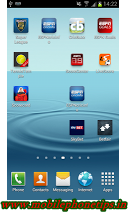
Firstly you need to select the icon you wish to delete. To do this you need to hold your finger on the icon for a few seconds until the screen looks like the image on the right with the icon you selected looking a little bit "ghostly". After selecting the icon you will notice that the "Apps" icon from the bottom right hand corner has now turned into a bin with the word "Delete" underneath it.
You need to drag the icon from where it is down to the bin. After doing this the icon will be gone from the home screen, however the app will not be uninstalled from the phone and you will be able to replace it on the home screen easily if you wish, or if you delete the wrong icon by mistake.
How to move Icons on a Samsung Galaxy S3

One of the great things about modern day smart phones is the ability to customise your phone exactly how you want it. You're not limited by just changing the background or the ringtone but you can change literally everything about the phone. This guide hopes to show you have to move icons as further customise how your phone looks. Whilst this guide was done with screenshots from a Samsung Galaxy S3, the same method applies with pretty much every phone running Android.
Firstly you need to open up your home screens and find an icon you want to move. For this example I will be selecting the icon for "Ebuddy XMS", which is sat on the bottom left corner of the 3rd home screen (See top left). To select the icon you need to hold your finger on the icon for a few seconds and this will then allow you to drag the icon around the screen.
You can not only drag the icon around the same screen as it started on (see the picture on the right) but also place it on other screens by dragging the icon to edge of one of the screens. This allows you to drag the icon to any of the phone's home screens as you perhaps choose to put your most regularly used icons to the first screen whilst your lesser used icons can be put to the most distant homes screens.

One of the great things about modern day smart phones is the ability to customise your phone exactly how you want it. You're not limited by just changing the background or the ringtone but you can change literally everything about the phone. This guide hopes to show you have to move icons as further customise how your phone looks. Whilst this guide was done with screenshots from a Samsung Galaxy S3, the same method applies with pretty much every phone running Android.Firstly you need to open up your home screens and find an icon you want to move. For this example I will be selecting the icon for "Ebuddy XMS", which is sat on the bottom left corner of the 3rd home screen (See top left). To select the icon you need to hold your finger on the icon for a few seconds and this will then allow you to drag the icon around the screen.
You can not only drag the icon around the same screen as it started on (see the picture on the right) but also place it on other screens by dragging the icon to edge of one of the screens. This allows you to drag the icon to any of the phone's home screens as you perhaps choose to put your most regularly used icons to the first screen whilst your lesser used icons can be put to the most distant homes screens.How to change the ordering on the "Notification Panel" on a Samsung Galaxy S4
Modern day phones are vastly different to the devices that we had in our pockets just 5 or 6 years ago. They've suddenly gone from devices chat and text to full blown mini-computers capable of being used for so many things that's it's pointless to list all the tasks they can do.With the advancement of what phones can do we've also got to the point of having phones that can do more things than we'll ever need to know about. This is especially true with the recent "super" Androids that have really moved the goal posts with their functionality and uses that many of us will never even know about (honestly if we did a guide about every function on the phone we'd have to spend a month just playing with the handset).
A lot of these new functions can be found in the "notification bar" of the Samsung Galaxy S4 if you drag the bar down and scroll to the right including things like "Air View" and "Air Gesture".
Whilst most people won't use a number of these functions you can very easily re-order them so that the ones you will use will be "first" on the panel whilst the ones you'll never used can be moved the the end.
To change the order of the icons you need to pull the bar down (see picture above) then click the icon in the top right corner (the one with 3 little squares and 2 arrows). After pressing that icon your screen will change to the one opposite with all the icons on. From this screen you can turn on any of the functions (and access their individual settings) though what you need to do to reposition them is to click the little pencil in the corner and go on to the screen below.From this screen you merely drag them in to the order you want them. Starting with the first icon (top right) to the 20th icon (bottom right).
So for example if you want quick access to your NFC or Wi-Fi hotspot settings you can drag them along and perhaps replace Bluetooth or Screen Rotation (2 I don't tend to use personally) to give you quicker access.
Of course it's just as easy as doing the same steps to set up the phone back to the way it already was so feel free to have a play and find the settings that best suit you.
Note-At the moment it doesn't seem possible to actually delete any icons from the "notification panel" though I'd assume that this will be dealt with in a future update.
How to turn off mobile data on a Samsung Galaxy S4
How to turn off mobile data on a Samsung Galaxy S4In today's world we all seem to use mobile data every single day. Whether we are just browsing the net, checking twitter, uploading pictures to facebook, streaming live video of Japanese TV (yes, yes, I know that's just me!) or using an instant messenger like Skype or Whatsapp.
Now a days however we get plenty of chances to log on to a Wi-fi network, be it our own in our own houses, one we have access to through our service provider or a general one in a restaurant, cafe or hotel. When you can get a
With the Samsung Galaxy S2 (and various other Androids) there is actually 2 ways in which a user can turn off their mobile internet:
Method 1-If you drag down the notification bar and scroll across slightly you will get the option of "Mobile data" if you press on this and turn the light off this will turn off mobile data and save the battery. (For reference see above).
Method 2-Alternatively if you hold the power button you will get a "Device options" screen (see the picture to the right) which allows you to turn off "Date network mode" which is actually the same thing.
To turn it back on you can just do every thing again but make sure the light is "on" in the notification panel or the option says "activated".
For most of he time the notification bar method is the easiest and quickest, but for the few occasions where it may be difficult to access the bar, the "Device options" method may be an easier alternative.
Wi-Fi signal it's usually a better (read "faster" and "more stable") connection than you'd get using mobile data so it's advised to turn off your mobile data to save battery power whilst connected to Wi-fi.
Are the facts behind "Mobile Internet Caps" a false economy?
I've recently finished one of my contracts with Vodafone. Over the past 3 years I've had 3 concurrent contracts with them for various reasons with my first Vodafone contract dating back over 4 years. I'll be honest I've received fantastic service from them since I started but in the weeks coming up to a renewal I was rather disheartened by the way they were starting to treat me.
As I spoke to various shops selling phones I started to realise that Vodafone were misleading me on several key issues and were also pedalling rather misleading facts that didn't represent a full picture of what was going on. In fact looking back over things I've got to admit I'm actually disgusted at the way they treat me as a customer.
In this past this website hasn't been about ranting and raving but about giving you, our loyal readers, a chance to get the most from your handset. This time however I'd like to make you aware of some of the issues I feel belie a rather dishonest sales technique used by Vodafone (and likely several other companies).
About 3 months ago I did renew one of my contracts, taking out a 24 month contract on a Samsung Galaxy S3. Whilst speaking to Vodafone in store they told me that they were the only way I could get a 24 month warranty on a handset with their network. This wasn't a major selling point to me but something I was curious about so when looking for another renewal I did ask in Phones4U if they offered the same 2 year warranty and to my surprise, they did.
Yes Vodafone had lied to me. I know it was a small detail but it was still a lie.
I was hoping to upgrade to a Samsung Galaxy S4, arguably the best handset on the market. I had called the retentions and cancellations department of Vodafone on 4 separate occasions and spoken to a member of their web team.
On my first 3 calls to the retentions and cancellations team I was told their system was down (this was over the space of 2 days). I was trying to inform them that I had seen a deal with “3” that I liked and one of the team informed me that “3's service were regularly down”, I don't think he saw the irony. I spoke to another operator and the best they could offer me was 1GB data for £37, despite the fact the company had text me on the number I had previously upgraded and offered me a 2GB data deal for £38.
When I was in Phones4U I asked what was the best they could do on Vodafone was and their deals were all £5 a month less than what Vodafone had offered directly. I knew that Phones4U and Carphone Warehouse (amongst other 3rd party retailers) were cheaper than Vodafone directly. I was under the belief (and still am) that this because they are considered an affiliate and as a result have some leeway in negotiating with customers. In fact a company can claim up to £45 per phone on commission from Vodafone as an affiliate (this is publicly advertised on Vodafones own website).
When I spoke to a cancellations agent about the price differential I got told that the reason Phones4U could undercut them was due to “selling my details”. Whether they sell my details or not, I have a strong feeling that the reason they can under-cut Vodafone is at least partly due to being an affiliate.
Now whilst that may be wrong it is my strong understanding that they are on commission and can undercut as a result.
Whilst the “mis-selling” is perhaps a wrong term I do strongly feel that I've been lied to be the company in what they've said, though I can't also claim that. In fact sometimes Vodafone do stick to well understood facts.
In the UK the average mobile phone user used 440MB of data a month in 2012 (according to one of the Vodafone cancellations team). Interestingly this fact is being pushed out a reason not to use “unlimited” or “All You Can Eat” data packages (offered by “3”, “T-Mobile” and “Giffgaff”) though it doesn't actually look at trends (including a big growth last year in the data used by an average customer) or even the reasons behind the figure. (Note "3" have said their average customers usage between 2011 and 2012 moved from 450MG to 1.1GB)
Mobidia recently did their own research looking at the markets in South Korea, Japan and the USA. What they saw was as you gave people bigger usage allowances they tended to use more data (“No shit” said Sherlock) and as you gave them quicker speeds you again saw more usage.
If customers are given 1GB they are likely to stay well inside that for fear of being hit with a hefty penalty (with Vodafone this is £5 for every 250MB over your allowance). If the limit was raised, I'd make a very educated guess (and one that is backed up by Mobidia's report) that people would use more, likewise if the penalty was reduced people would again use more.
If you're like me and you enjoy music, you likely use a service like Spotify, Deezer, Rdio or WE7 to listen to tracks. All of these use data, in fact they use around 7MB per average song (roughly) so if you're out on an hour long jog you could end up using up around 120MB per jog. Do that same just 4 times a month and you've used more than an average user.
Do that same jog 3 times a week (so 12 times a month) and you've used well over the 1GB allowance that Vodafone tried to push on me, in fact I'd have gone so far over that I'd have been hit with at least 1 (if not 2) penalty charges!
Heck if you watch 30 minutes of streamed video a day you'd go several times over the “average” use, yet it's not hard to believe that someone would watch 30 minutes of news whilst on the train, a bus or just sat in a cafe.
With LTE just starting to take off in the UK the “average usage” stat is starting to look more and more like a lie peddled out to confuse customers. A 500MB allowance on LTE could be used in just minutes if you were streaming a film on Netflix, Lovefilm or NowTV.
Whilst Vodafone do offer a “test drive” for the first 3 months of a contract it'd be interesting to see what would happen if you used it like I mentioned above.
Using Verizon's “Data Usage Calculator (http://www.verizonwireless.com/b2c/splash/datacalculatorPopup.jsp) lets say I used my 3G to watch 30 minutes of streamed video (to catch up on the news) and streamed 15 minutes of music every day. This alone would bring my usage to 4.1GB.
That's 4.1GB from just using my phone for 45 minutes a day, that's actually more than Vodfone's highest data plan!
Interestingly since going with “3” just 2 weeks ago I've used a rather staggering 14GB of data. I'll admit 7.14GB of that was tethering (I've been moving house) but a further 2.18GB was used on the Play Store and over 500MB on WE7. I've yet to use it for Skype though fully intend to and I've also found out that my speeds are generally 3 to 4 times quicker than Vodafones in the same area (despite once again being told by Vodafone that that wasn't going to be the case).
To you all you phone users out there, I want you to think long and hard about what sales staff, from any company, tells you. They may be bending the truth, they may be lying or they may be telling you facts, but it's always worth thinking about what they say. Hopefully a user push towards honesty and openess will help see some of these things change. Hopefully we can drive companies to stop relying on facts that show a false economy and hopefully we can make things better for ourselves.
Thank you, and I'm sorry for this rant.
Friday, June 21, 2013
Save Battery Life by Setting WiFi Off Automatically During Sleep
We know it sounds a negative sort of a tip but then if you have wifi access throughout the day, and use it often, then this tip can help you to save the battery. You can easily control this with a wifi toggle widget on your homescreen.Here’s how you can do that:
tap the menu button -> Settings -> Wi-Fi settings
look for Advanced settings
now set ‘Keep Wi-Fi on during sleep’ to ‘Never’
We provide the secret tips and tricks for all leading mobile phone/cell phone like LG, Nokia, Samsung, Motorola,sony ericson And GSM Secret.
To check IMEI (International Mobile Equipment Identity) for any mobile or cellular phone.
On the main screen type *#06#
Information you get from the IMEI (International Mobile Equipment Identity)
XXXXXX XX XXXXXX X
TAC FAC SNR SP
TAC = Type approval code of your Nokia Mobile
FAC = Final assembly code of your cell phone
SNR = Serial number of your Nokia Phone
SP = Spare
===================================================
FOR LG
LG all models test mode:
Type 2945#*# on the main screen.
2945*#01*# Secret menu for LG
IMEI and SW (LG 510): *#07#
Software version (LG B1200): *8375#
Recount cheksum (LG B1200): *6861#
Factory test (B1200): #PWR 668
Simlock menu (LG B1200): 1945#*5101#
Simlock menu (LG 510W, 5200): 2945#*5101#
Simlock menu (LG 7020, 7010): 2945#*70001#
Simlock menu (LG 500, 600): 2947#*
LG-U81XX SPECIAL CODES
Code to read phone version :
- Phone without SIM
- Enter 277634#*# or 47328545454#
- Select ‘SW Ver.info’
Code to reset phone :
- Phone without SIM
- Enter 277634#*# or 47328545454#
- Select ‘Factory Reset’
Code to enter UNLOCK MENU :
- Phone wit SIM inside
- Enter 2945#*88110#
Test Menu 8330 : 637664#*#
Test Menu 8180 V10a: 49857465454#
Test Menu 8180 V11a: 492662464663#
Test Menu 8130-8138: 47328545454#
Test Menu 8110-8120: 277634#*
LG all models test mode:
Type 2945#*# on the main screen.
2945*#01*# Secret menu for LG
IMEI and SW (LG 510): *#07#
Software version (LG B1200): *8375#
Recount cheksum (LG B1200): *6861#
Factory test (B1200): #PWR 668
Simlock menu (LG B1200): 1945#*5101#
Simlock menu (LG 510W, 5200): 2945#*5101#
Simlock menu (LG 7020, 7010): 2945#*70001#
Simlock menu (LG 500, 600): 2947#*
LG-U81XX SPECIAL CODES
Code to read phone version :
- Phone without SIM
- Enter 277634#*# or 47328545454#
- Select ‘SW Ver.info’
Code to reset phone :
- Phone without SIM
- Enter 277634#*# or 47328545454#
- Select ‘Factory Reset’
Code to enter UNLOCK MENU :
- Phone wit SIM inside
- Enter 2945#*88110#
Test Menu 8330 : 637664#*#
Test Menu 8180 V10a: 49857465454#
Test Menu 8180 V11a: 492662464663#
Test Menu 8130-8138: 47328545454#
Test Menu 8110-8120: 277634#
==================================================
FOR NOKIA
To check the phones Software revision for Nokia Mobile.
On the main screen type *#0000#
To enter in the secret menu in Nokia Phone.
On the main screen type *#92702689# [*#war0anty#]
It will take you to a secret menu where you may find some of the information below:
1. Displays Serial Number.
2. Displays the Month and Year of Manufacture
3. Displays (if there) the date where the phone was purchased (MMYY)
4. Displays the date of the last repair – if found (0000)
5. Shows life timer of phone (time passes since last start)
To restore Factory Settings for Nokia mobile
*#7780# reset to factory settings.
Taking picture without getting noticed.
Turn on/off the “click” sound made by the camera by selecting the ‘Silent’ profile or by turning warning tones on/off.
Hiding your Mobile/ Cellphone Number
Go to: Menu > Tools > Settings > Call > Send My Caller ID >
‘Yes’, ‘No’ or ‘Set By Network’ to follow the default settings of your home network.
It works only with very few network who provide you facility of “Private Number”
Speed Dialing From Simcard contact (not stored in mobile phonebook)
Type number followed by # then call.
Example: 1# or 2# or 21#
==================================================
FOR SAMSUNG
If you have downloaded corrupted or incompatible Java midlets or other media,
which are causing problems with the phone, try this
*2767*JAVA# Java Reset and (Deletes all Java Midlets)
*2767*MEDIA# Reset Media (Deletes All Sounds and Pics)
*2767*WAP# Wap Reset
*2767*CUST# Reset Custom EEPR0M
*2767*FULL# Reset Full EEPR0M (Caution)
For example : *2767*JAVA# would be keyed in as *2767*5282#
Note : Not all codes will work with SGH-C100.
The master reset code is:
#*7728#
This will not delete anything from your
mobile phone, but set each and eveything to its
default/standard setting as it was on the time of purchase.
To unlock your phone put a sim from another company,
now type *#9998*3323# it will reset your phone. Push exit and then push 7,
it will reset again. Put your other sim in and it will say sim lock,
type in 00000000 then it should be unlocked. Type in *0141# then
the green call batton and it’s unlocked to all networks.
This code may not work on the older phones and some of the newer phones.
If it doesn’t work you will have to reset your phone without a sim in it
by typing *#2767*2878# or *#9998*3855# (not tested)
Other Samsung Codes
*#9998*4357# Help Menu
*#9998*5282# Java menu (GRPS/CSD settings for JAVA server)
*#9999#0# Monitor Mode
*#9999# or *#9998*9999# Software Version
*#8888# or *#9998*8888# Hardware Version
*#9998*746# or *#9998*0746# or *#0746# Sim Infos
*#9998*523# or *#9998*0523# or *#0523# Display Contrast
*#9998*842# or *#9998*0842# or *#0842# Vibration On (until you push OK)
*#9998*289# or *#9998*0289# or *#0289# Buzzer On (until you push OK)
*#9998*288# or *#9998*0288# or *#0288# Battery & Field Infos
*#9998*377# or *#9998*0377# Error log
*#9998*778# or *#9998*0778# or *#0778# Sim Service table
*#9998*782# show date and alarm clock
*#8999*638# show network information
*#9998*5646# change operator logo at startup
*#9998*76# production number
*#9998*968# view melody for alarm
*#9998*585# Non-Volatile Memory (NVM)
*#3243948# Digital Audio Interference Off
*#32436837# Digital Audio Interference On
==================================================
FOR MOTOROLA
Code to lock keys. Press together *7
Note: [] (pause) means the * key held in until box appears.
Select phone line – (use this to write things below the provider name):
[] [] [] 0 0 8 [] 1 []
Add phonebook to main menu:
[] [] [] 1 0 5 [] 1 []
Add messages to main menu:
[] [] [] 1 0 7 [] 1 []
Copy SIM memory (phonebook menu):
[] [] [] 1 0 8 [] 1 []
Eng Field options (main menu):
[] [] [] 1 1 3 [] 1 []
Slow (Frequency of search menu):
[] [] [] 1 0 1 [] 1 []
Medium (Frequency of search menu):
[] [] [] 1 0 2 [] 1 []
Fast (Frequency of search menu):
[] [] [] 1 0 3 [] 1 []
Enable EFR:
[] [] [] 1 1 9 [] 1 []
Function :
[] [] [] # # # [] 1 []
Change pin:
[] [] [] 0 0 4 [] 1 []
Unblocking using the “puk” number:
[] [] [] 0 0 5 [] 1 []
You can change GSM frequencies to 900/1800 by entering the enginnering model.
Following the below steps:
enter menu and press 048263* quickly,
then you will enter the secret engineering menu under “Opcode”
input 10*0*3 for GSM 900
10*0*4 for GSM 1800
10*0*5 for GSM 1900
10*0*6 for dual band GSM 900/1800
10*0*7 for dual band GSM 850/1900
To add extra message space 4 your Motorola C350 C450 C550 or C650,
press menu button, press 048263* quickly, then on the popup menu enter 47 press ok.
press 50 and ok.press 1 ok.press 64 ok.press 1 ok.press 186 and ok.
You will receive an extra 50 msgs memory space.Switch phone off and back on.
==================================================
Sony Ericsson
Sony Ericsson Secret Menu:
> * < < * means press joystick or arrow keys to right
< means press joystick or arrow keys to left
1. push joy stick to RIGHT once
2. press *
3. push joy stick to LEFT twice
4. press *
5. push joy stick to LEFT once
6. press *
The Service Menu will appears containing following information !
1. Service Info
a. Software Version
b. SIMlock
c. Configuration
2. Service Setting
a. Contrast
3. Service Test
a. Display
b. LED/Illumination – *This test is very cool
c. Keyboard
d. Buzzer
e. Vibrator
f. Earphone
g. Microphone
h. Real Time Clock
i. Joystick Counter*
Lockstatus: < * * <
Shortcut to last dialed numbers: 0#
Shortcut to sim numbers: On main menu type a number and press #
If you change the language from default to any other language, then it may be difficult to switch to default language.
The shortcut is very simple. Just press
stands for right arrow button or joystick.
Secret Games: Snake on the T68
Go to Erix and then on the main screen press 123 and you will be taken to the game.
Secret Message:
On Tetris on the main screen when the blocks are falling press 397 and a message will appear.
======================================
GSM Secret
All the tips and tricks provided by Hidden Tricks is free and its not necessary to sign up also.
Type *#61# and press call – Check call redirection status.
Cancel all redirections: ##002#
*43# to activate call waiting, to deactivate #43#.
If your phone doesn’t have incoming call barring and outgoing call barring, you can try this. For outgoing call barring dial *33*barcode*# and pres OK. To deactivate it dial #33#barcode*#.
On any phone on any network type in **43# to enable conference calls. You can make up to 7 calls at once
If you need to block SMS reception (if you are spammed by someone) just press this code: *35*xxxx*16# xxxx is your Call Barring code (default is 0000). To remove this barring type: #35*xxxx#
If you want to hide/show your phone number when calling, put one of these codes below in front of the number that you are going to call. (*#30# / *#31# or *31# / #31# ) Works on some networks.
Typing *0# or *nm# on the beginning of a txt message gives you detailed delivery report on some networks.. But turn off reports in message settings before.
When the sim card-pin blocked type **042*pin2 old*newpin2*newpin2*
Important:
If you know any other tips & tricks & secrets about GSM mobile or any other mobile which is not listed here then you can post in Memberbook and it will be updated soon with your name.
Warning:
You can try these codes at your own responsibility ! We are not responsible for any malfunction and we don’t accept any complaints.
To check IMEI (International Mobile Equipment Identity) for any mobile or cellular phone.
On the main screen type *#06#
Information you get from the IMEI (International Mobile Equipment Identity)
XXXXXX XX XXXXXX X
TAC FAC SNR SP
TAC = Type approval code of your Nokia Mobile
FAC = Final assembly code of your cell phone
SNR = Serial number of your Nokia Phone
SP = Spare
===================================================
FOR LG
LG all models test mode:
Type 2945#*# on the main screen.
2945*#01*# Secret menu for LG
IMEI and SW (LG 510): *#07#
Software version (LG B1200): *8375#
Recount cheksum (LG B1200): *6861#
Factory test (B1200): #PWR 668
Simlock menu (LG B1200): 1945#*5101#
Simlock menu (LG 510W, 5200): 2945#*5101#
Simlock menu (LG 7020, 7010): 2945#*70001#
Simlock menu (LG 500, 600): 2947#*
LG-U81XX SPECIAL CODES
Code to read phone version :
- Phone without SIM
- Enter 277634#*# or 47328545454#
- Select ‘SW Ver.info’
Code to reset phone :
- Phone without SIM
- Enter 277634#*# or 47328545454#
- Select ‘Factory Reset’
Code to enter UNLOCK MENU :
- Phone wit SIM inside
- Enter 2945#*88110#
Test Menu 8330 : 637664#*#
Test Menu 8180 V10a: 49857465454#
Test Menu 8180 V11a: 492662464663#
Test Menu 8130-8138: 47328545454#
Test Menu 8110-8120: 277634#*
LG all models test mode:
Type 2945#*# on the main screen.
2945*#01*# Secret menu for LG
IMEI and SW (LG 510): *#07#
Software version (LG B1200): *8375#
Recount cheksum (LG B1200): *6861#
Factory test (B1200): #PWR 668
Simlock menu (LG B1200): 1945#*5101#
Simlock menu (LG 510W, 5200): 2945#*5101#
Simlock menu (LG 7020, 7010): 2945#*70001#
Simlock menu (LG 500, 600): 2947#*
LG-U81XX SPECIAL CODES
Code to read phone version :
- Phone without SIM
- Enter 277634#*# or 47328545454#
- Select ‘SW Ver.info’
Code to reset phone :
- Phone without SIM
- Enter 277634#*# or 47328545454#
- Select ‘Factory Reset’
Code to enter UNLOCK MENU :
- Phone wit SIM inside
- Enter 2945#*88110#
Test Menu 8330 : 637664#*#
Test Menu 8180 V10a: 49857465454#
Test Menu 8180 V11a: 492662464663#
Test Menu 8130-8138: 47328545454#
Test Menu 8110-8120: 277634#
==================================================
FOR NOKIA
To check the phones Software revision for Nokia Mobile.
On the main screen type *#0000#
To enter in the secret menu in Nokia Phone.
On the main screen type *#92702689# [*#war0anty#]
It will take you to a secret menu where you may find some of the information below:
1. Displays Serial Number.
2. Displays the Month and Year of Manufacture
3. Displays (if there) the date where the phone was purchased (MMYY)
4. Displays the date of the last repair – if found (0000)
5. Shows life timer of phone (time passes since last start)
To restore Factory Settings for Nokia mobile
*#7780# reset to factory settings.
Taking picture without getting noticed.
Turn on/off the “click” sound made by the camera by selecting the ‘Silent’ profile or by turning warning tones on/off.
Hiding your Mobile/ Cellphone Number
Go to: Menu > Tools > Settings > Call > Send My Caller ID >
‘Yes’, ‘No’ or ‘Set By Network’ to follow the default settings of your home network.
It works only with very few network who provide you facility of “Private Number”
Speed Dialing From Simcard contact (not stored in mobile phonebook)
Type number followed by # then call.
Example: 1# or 2# or 21#
==================================================
FOR SAMSUNG
If you have downloaded corrupted or incompatible Java midlets or other media,
which are causing problems with the phone, try this
*2767*JAVA# Java Reset and (Deletes all Java Midlets)
*2767*MEDIA# Reset Media (Deletes All Sounds and Pics)
*2767*WAP# Wap Reset
*2767*CUST# Reset Custom EEPR0M
*2767*FULL# Reset Full EEPR0M (Caution)
For example : *2767*JAVA# would be keyed in as *2767*5282#
Note : Not all codes will work with SGH-C100.
The master reset code is:
#*7728#
This will not delete anything from your
mobile phone, but set each and eveything to its
default/standard setting as it was on the time of purchase.
To unlock your phone put a sim from another company,
now type *#9998*3323# it will reset your phone. Push exit and then push 7,
it will reset again. Put your other sim in and it will say sim lock,
type in 00000000 then it should be unlocked. Type in *0141# then
the green call batton and it’s unlocked to all networks.
This code may not work on the older phones and some of the newer phones.
If it doesn’t work you will have to reset your phone without a sim in it
by typing *#2767*2878# or *#9998*3855# (not tested)
Other Samsung Codes
*#9998*4357# Help Menu
*#9998*5282# Java menu (GRPS/CSD settings for JAVA server)
*#9999#0# Monitor Mode
*#9999# or *#9998*9999# Software Version
*#8888# or *#9998*8888# Hardware Version
*#9998*746# or *#9998*0746# or *#0746# Sim Infos
*#9998*523# or *#9998*0523# or *#0523# Display Contrast
*#9998*842# or *#9998*0842# or *#0842# Vibration On (until you push OK)
*#9998*289# or *#9998*0289# or *#0289# Buzzer On (until you push OK)
*#9998*288# or *#9998*0288# or *#0288# Battery & Field Infos
*#9998*377# or *#9998*0377# Error log
*#9998*778# or *#9998*0778# or *#0778# Sim Service table
*#9998*782# show date and alarm clock
*#8999*638# show network information
*#9998*5646# change operator logo at startup
*#9998*76# production number
*#9998*968# view melody for alarm
*#9998*585# Non-Volatile Memory (NVM)
*#3243948# Digital Audio Interference Off
*#32436837# Digital Audio Interference On
==================================================
FOR MOTOROLA
Code to lock keys. Press together *7
Note: [] (pause) means the * key held in until box appears.
Select phone line – (use this to write things below the provider name):
[] [] [] 0 0 8 [] 1 []
Add phonebook to main menu:
[] [] [] 1 0 5 [] 1 []
Add messages to main menu:
[] [] [] 1 0 7 [] 1 []
Copy SIM memory (phonebook menu):
[] [] [] 1 0 8 [] 1 []
Eng Field options (main menu):
[] [] [] 1 1 3 [] 1 []
Slow (Frequency of search menu):
[] [] [] 1 0 1 [] 1 []
Medium (Frequency of search menu):
[] [] [] 1 0 2 [] 1 []
Fast (Frequency of search menu):
[] [] [] 1 0 3 [] 1 []
Enable EFR:
[] [] [] 1 1 9 [] 1 []
Function :
[] [] [] # # # [] 1 []
Change pin:
[] [] [] 0 0 4 [] 1 []
Unblocking using the “puk” number:
[] [] [] 0 0 5 [] 1 []
You can change GSM frequencies to 900/1800 by entering the enginnering model.
Following the below steps:
enter menu and press 048263* quickly,
then you will enter the secret engineering menu under “Opcode”
input 10*0*3 for GSM 900
10*0*4 for GSM 1800
10*0*5 for GSM 1900
10*0*6 for dual band GSM 900/1800
10*0*7 for dual band GSM 850/1900
To add extra message space 4 your Motorola C350 C450 C550 or C650,
press menu button, press 048263* quickly, then on the popup menu enter 47 press ok.
press 50 and ok.press 1 ok.press 64 ok.press 1 ok.press 186 and ok.
You will receive an extra 50 msgs memory space.Switch phone off and back on.
==================================================
Sony Ericsson
Sony Ericsson Secret Menu:
> * < < * means press joystick or arrow keys to right
< means press joystick or arrow keys to left
1. push joy stick to RIGHT once
2. press *
3. push joy stick to LEFT twice
4. press *
5. push joy stick to LEFT once
6. press *
The Service Menu will appears containing following information !
1. Service Info
a. Software Version
b. SIMlock
c. Configuration
2. Service Setting
a. Contrast
3. Service Test
a. Display
b. LED/Illumination – *This test is very cool
c. Keyboard
d. Buzzer
e. Vibrator
f. Earphone
g. Microphone
h. Real Time Clock
i. Joystick Counter*
Lockstatus: < * * <
Shortcut to last dialed numbers: 0#
Shortcut to sim numbers: On main menu type a number and press #
If you change the language from default to any other language, then it may be difficult to switch to default language.
The shortcut is very simple. Just press
stands for right arrow button or joystick.
Secret Games: Snake on the T68
Go to Erix and then on the main screen press 123 and you will be taken to the game.
Secret Message:
On Tetris on the main screen when the blocks are falling press 397 and a message will appear.
======================================
GSM Secret
All the tips and tricks provided by Hidden Tricks is free and its not necessary to sign up also.
Type *#61# and press call – Check call redirection status.
Cancel all redirections: ##002#
*43# to activate call waiting, to deactivate #43#.
If your phone doesn’t have incoming call barring and outgoing call barring, you can try this. For outgoing call barring dial *33*barcode*# and pres OK. To deactivate it dial #33#barcode*#.
On any phone on any network type in **43# to enable conference calls. You can make up to 7 calls at once
If you need to block SMS reception (if you are spammed by someone) just press this code: *35*xxxx*16# xxxx is your Call Barring code (default is 0000). To remove this barring type: #35*xxxx#
If you want to hide/show your phone number when calling, put one of these codes below in front of the number that you are going to call. (*#30# / *#31# or *31# / #31# ) Works on some networks.
Typing *0# or *nm# on the beginning of a txt message gives you detailed delivery report on some networks.. But turn off reports in message settings before.
When the sim card-pin blocked type **042*pin2 old*newpin2*newpin2*
Important:
If you know any other tips & tricks & secrets about GSM mobile or any other mobile which is not listed here then you can post in Memberbook and it will be updated soon with your name.
Warning:
You can try these codes at your own responsibility ! We are not responsible for any malfunction and we don’t accept any complaints.
Phones in the bath, a gimmick?
Earlier this year Sony released their new flagship phone the Sony Xperia Z a phone that tries to set a new standard for mobile technology. Whilst it may not be the first ever water proof phone it is by far the most widely available, though the question is "is it a gimmick?"
The big question we've been asked when talking about the phone on various forums is "why would anyone want a water proof phone?" Well the reasons are actually numerous and with it being the phones key selling point we've decided to answer that question in detail.
Firstly the device can be used perfectly well in the rain without the fear of setting off the "water damage" sticker currently on phones. This has been a major issues especially with major phones including Apple's iPhones and some of the Samsung Galaxy series which are really expensive bits of kit to replace (even if you have insurance the process of going through it can be a pain in the backside).
Sure the rain rarely sets off the sticker but it's still a risk and one that needn't be run with the Xperia Z.
Secondly the phone can be used in the bath. I know what you're thinking and no, that's not the only reason (you dirty boys and girls!) for people like me who watch a lot of sport the fact you can use it in the bath means you can relax in the bath with the football, boxing or cricket on the phone, whilst for others you could watch the news, soaps or even a movie in the bath.
Just sit there for a second and think about the possibilities. Silly cat videos from youtube, BBC programs from iPlayer or of course making the most of your Netflix/LoveFilm subscription.
You now have no excuse for missing any program, in fact you can actually watching programs whilst having a bath in preparation for a night out.
Thirdly and possibly the most entertaining (I know, hard to believe) is the fact you can just show off! Just imagine the fun you could have by scaring your mates by dropping it in the sink whilst they are watching and panicking whilst you act all heart broken...then vamoosh still working much to their surprise....
...OK that's a poor reason but the fact you can use it in bath is a huge appealing point for us (yes we're slimy little nerds!) The phone it's self however doesn't rely solely on this gimmick but if you're still wondering what to pick the phone is genuinely top notch, looks fantastic and is cheaper than the iPhone 5 and Samsung Galaxy S4 (arguably the only phone better than the Xperia).
IR Blaster?
In bygone years a number of mobile phones had an IR blaster on the edge of the handset. This was used back then mainly for file transfers allowing you to to send a picture, for example, to your buddy's phone from yours.
Since then things have changed and IR (Infrared) is no longer seen as a viable option for file transfer due to things like bluetooth (which is much faster), e-mail (which has been helped thanks to increased mobile internet speed) and various other apps (think Dropbox, Whatsapp? and Skypath). Sadly this saw IR blasters being made all but extinct with only a small selection of handsets using IR.
Thankfully IR seems to have made a bit of a comeback in recent years with several phones (notably the Samsung Galaxy S4 and the HTC One X) including them and seeing their uses, not in file transfers but in every day situations.
If you look around your house you will almost certainly have a device that uses "IR", notably your television which uses an Infrared Remote to change the channels. Having just recently noticed my remote is now snapped in two (thanks to my wonderful partner...sigh women!) we're now using my phone to turn over the television. The IR "blaster" works just like a TV remote and with the right apps you'd never need the remote again (great if your family has a remote hog).
Sure it's not ideal but it beats not being able to turn the television over for what reason is a real pain in the backside so this can save you from needing to buy a new TV or getting up and changing the channel manually (do new TV's even let you do that?)
We imagine that the inclusion of "IR Blasters" will become a popular feature over the next few years, especially when you consider that companies like Sony and Samsung also produce TV's which allow them to sell you an in-built remote in their phones for their television sets. A genius move by companies trying to secure cross-product loyalty.
How to take a screenshot on a Samsung Galaxy S4
The brand new Samsung Galaxy S4, a phone that was released just a few short weeks ago may well be the next stage in the evolution of the Samsung Galaxy brand of phones but it's also a phone that is true to it's Samsung roots. With this in mind this tip is something many "Samsung fans" may already know, but for knew users this could be help.A screenshot, as with a computer just takes a shot of your screen exactly as it is as that time, this allows you to show off your homescreens or do guides (like this!) or to troubleshoot an issue.
To take a screenshot on your new Samsung Galaxy S4 you need to go to whatever screen you want a shot of, for the sake of this article I'm using a homescreen (as you can see in the pictures).
When you're on the screen you want you need to press both the "home" and the "lock" buttons at the same time. With in seconds of doing it you should see a message at the top of your screen saying "Saving Screenshot" (see picture).
If this has worked then you'll find the image stored on your phone in a folder called "Screenshots" which should it's self be in a folder called "Pictures".
You'll see this type of screenshots in almost every guide we do on this site due to how how clearly they show the details of the screens and we advise that if you have problems with your Samsung Galaxy S4 you take a screenshot of the issue and email us the picture and we'll try to solve the issue
How to turn off mobile data on a Samsung Galaxy S4
In today's world we all seem to use mobile data every single day. Whether we are just browsing the net, checking twitter, uploading pictures to facebook, streaming live video of Japanese TV (yes, yes, I know that's just me!) or using an instant messenger like Skype or Whatsapp.
Now a days however we get plenty of chances to log on to a Wi-fi network, be it our own in our own houses, one we have access to through our service provider or a general one in a restaurant, cafe or hotel. When you can get a Wi-Fi signal it's usually a better (read "faster" and "more stable") connection than you'd get using mobile data so it's advised to turn off your mobile data to save battery power whilst connected to Wi-fi.
With the Samsung Galaxy S2 (and various other Androids) there is actually 2 ways in which a user can turn off their mobile internet:
Method 1-If you drag down the notification bar and scroll across slightly you will get the option of "Mobile data" if you press on this and turn the light off this will turn off mobile data and save the battery. (For reference see above).
Method 2-Alternatively if you hold the power button you will get a "Device options" screen (see the picture to the right) which allows you to turn off "Date network mode" which is actually the same thing.
To turn it back on you can just do every thing again but make sure the light is "on" in the notification panel or the option says "activated".
For most of he time the notification bar method is the easiest and quickest, but for the few occasions where it may be difficult to access the bar, the "Device options" method may be an easier alternative.
Now a days however we get plenty of chances to log on to a Wi-fi network, be it our own in our own houses, one we have access to through our service provider or a general one in a restaurant, cafe or hotel. When you can get a Wi-Fi signal it's usually a better (read "faster" and "more stable") connection than you'd get using mobile data so it's advised to turn off your mobile data to save battery power whilst connected to Wi-fi.
With the Samsung Galaxy S2 (and various other Androids) there is actually 2 ways in which a user can turn off their mobile internet:
Method 1-If you drag down the notification bar and scroll across slightly you will get the option of "Mobile data" if you press on this and turn the light off this will turn off mobile data and save the battery. (For reference see above).
Method 2-Alternatively if you hold the power button you will get a "Device options" screen (see the picture to the right) which allows you to turn off "Date network mode" which is actually the same thing.
To turn it back on you can just do every thing again but make sure the light is "on" in the notification panel or the option says "activated".
For most of he time the notification bar method is the easiest and quickest, but for the few occasions where it may be difficult to access the bar, the "Device options" method may be an easier alternative.
Sunday, June 9, 2013
Clover Trail to power new Galaxy Tab
submit to reddit
Clover Trail to power new Galaxy Tab -
Intel seems to have grabbed its first major smart device Atom win courtesy of Samsung.
The news is hardly surprising, as rumours of an Intel powered Galaxy tablet emerged a couple of weeks ago, but they were not confirmed.
Now Reuters confirms that a Clover Trail+ chip will indeed power the upcoming Galaxy Tab 3 10.1. The exact specs of the new tablet, or chip for that matter, are still unknown. However, this seems like the first big Intel design win in a market dominated by ARM based SoCs, including Samsung’s own Exynos parts.
It is a rather surprising turn of developments. At a time when Apple is pursuing custom ARM parts, Samsung is turning to Intel for mobile silicon. It wouldn’t be the first Samsung tablet powered by Intel, as the Korean outfit already uses Intel chips in ATIV Windows 8 tablets, but this is its first Android powered Intel tablet. The decision might bode well for Intel’s shiny new CEO Brian Krzanich, who is apparently planning to step up the chip maker’s mobile game.
Samsung is expected to announce new ATIV tablets on 20 June, but it is still unclear when it plans to announce the third generation Galaxy Tab. Samsung tends to shy away from big events like Computex and MWC, preferring its own launch events, so it's unlikely that we will see it until Computex is over.
You might like:
Friday, June 7, 2013
Samsung Galaxy S4 – a life companion for the tech-savvy geeks
The most awaited Samsung Galaxy S4, the latest heavy-weight of the Samsung Galaxy series, is expected to be released to market in late April 2013, which is less than a year from the release of most popular Galaxy S3. From the outer appearance, Galaxy S4 is almost the same as Galaxy S3. However, as far as the technical specifications are concerned, the Galaxy S4 appears to be the most technically advanced phone you have ever seen to date. Therefore if you happen to own a Galaxy S3 you might want to consider upgrading to Galaxy S4. So let’s see what is new in this mighty gadget over its predecessor, S3.
Samsung Galaxy S4
4G LTE supported in all models – although Galaxy S3 has 4G LTE support in North American, Australian, Japanese & Korean versions, the international version does not have 4G support. Unfortunately most of the S3 phones imported here are international versions. Since 4G LTE networks are already available in Colombo city limits and expected to be expanded rapidly, you might love to experience the 4G data speeds. This may be a good reason for you to upgrade to Galaxy S4.
S4 & S3 appearance similarity
Larger screen with higher resolution/pixel density – S3 has 4.8 inch screen while S4 has 5 inch screen. S3 has 720 x 1280 pixels resolution while S4 has 1080 x 1920 resolution. Further S3 has 336 ppi pixel density but S4 has 441 ppi pixel density. This means you have a bit larger & bit better screen. However the difference may not be that significant for a naked eye.
Faster processor & more RAM – S4 has a Quad-core 1.6 GHz Cortex-A15 processor while S3 has only Quad-core 1.4 GHz Cortex-A9. S4 has 2GB RAM but S3 (International version) has only 1GB RAM.
Higher resolution camera – S4 has a 13MP camera while S3 has only 8MP camera. Also S4 has a slighty higher resolution front facing camera (2MP Vs 1.9MP).
Better battery – S4 has a higher-capacity battery (2600mAh as against 2100 mAh). However having a higher capacity battery will not essentially guarantee a better battery life given the larger screen & more powerful processor.
Slightly smaller & lighter – S4 is 136.6 x 69.8 x 7.9 mm in dimensions while S3 is 136.6 x 70.6 x 8.6 mm in dimensions. Also S4 is 130grams in weight but S3 is 133grams in weight.
Wireless charging – wireless charging means, as the name suggests, you can charge your phone without having a charging cable. If you have ever experienced entangled wire cords when you charge your phone you would be more than happy to see this technology. However this feature may not be available in all versions. If you have no idea of what really wireless charging is, just watch the following video.
Samsung Galaxy S4 Wireless Charging
Temperature and humidity sensors – these are the new sensors that S4 is equipped with. Although not everyone would need these in their phones, you may find them handy at times.
So what is lost when you upgrade to a S4? Just one thing guys! That is Guglielmo Marconi’s radio! So if you are used to listen to the radio with your phone, we are sorry you will have to find some other way if you upgrade to S4. It is sad why a gadget which is thought to be a master-of-all-business dropped the FM radio.
What about the price? Well…one of the network operators is taking pre-orders at a six-figure price of Rs.110,000/= with a data package at the time of writing this article. However if you could hold your nerves for few months more, we are sure you could catch a five-figure price tag.
Subscribe to:
Posts (Atom)